LPB Piso WiFi 10.0.0.1 guide covers login, admin access, pause time, vouchers, portal setup, and common connection issues and fixes.
LPB Piso WiFi 10.0.0.1: Login, Pause Time & Admin Guide
The 10.0.0.1 address is commonly used to access the local Piso WiFi portal or management interface, depending on the device and configuration.
If you want to log in, pause your internet time, manage the system, or troubleshoot an LPB Piso WiFi connection, this guide covers the basic steps.
What Is LPB Piso WiFi?
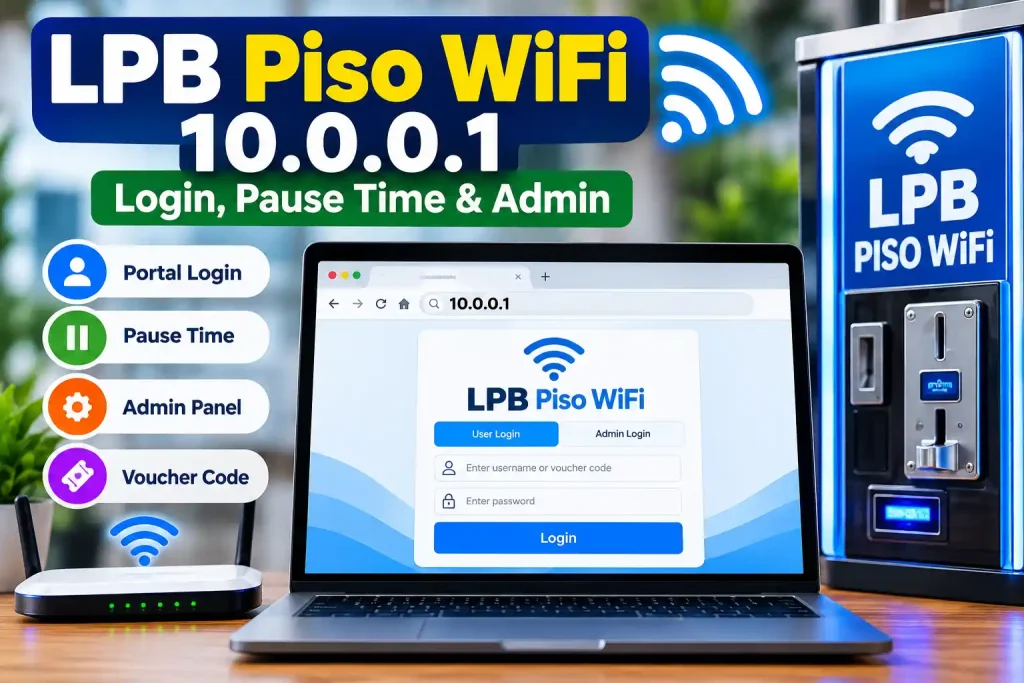
LPB Piso WiFi is a public WiFi vending system designed to provide internet access for a specific amount of time. Users can connect to the WiFi network and purchase or enter access time through the Piso WiFi portal.
The exact features can vary depending on the LPB setup, firmware, and administrator configuration.
How to Access LPB Piso WiFi 10.0.0.1
To access the LPB Piso WiFi portal:
- Connect your phone, laptop, or other device to the Piso WiFi network.
- Open Chrome, Safari, or another browser.
- Enter 10.0.0.1 in the address bar.
- Press Enter or Go.
- Wait for the Piso WiFi login or portal page to load.
Make sure you enter the IP address in the browser’s address bar rather than a search engine.
LPB Piso WiFi Login
The login page depends on whether you are accessing the customer portal or the admin interface.
For normal users, the portal may provide options to insert a voucher, purchase internet time, check remaining time, or pause an active session.
Administrators may need separate credentials to access system settings. The username and password are usually configured by the system owner, so there is no single login combination that works for every LPB Piso WiFi machine.
How to Pause LPB Piso WiFi Time
If the LPB system supports pause functionality, you can usually pause an active session from the Piso WiFi portal.
A typical process is:
- Connect to the LPB Piso WiFi network.
- Open the portal through 10.0.0.1.
- Look for the Pause option.
- Select Pause to stop your remaining session time.
- Return to the portal later and select Resume if available.
Pause features depend on the specific Piso WiFi configuration. Some systems may not provide a pause option.
LPB Piso WiFi Admin Panel
The admin panel is intended for the person managing the Piso WiFi system. Depending on the setup, it may allow the administrator to manage network settings, user sessions, vouchers, time packages, and other system options.
Only use administrator credentials provided by the system owner. Changing network settings without knowing their purpose can cause the portal or internet connection to stop working.
LPB Piso WiFi Voucher
Some LPB Piso WiFi systems use voucher codes to provide internet access. After connecting to the network, enter the valid voucher code on the portal if the system provides a voucher option.
If a voucher does not work, check that:
- The code was entered correctly.
- The voucher has not expired.
- The code has not already been used.
- You are connected to the correct Piso WiFi network.
LPB Piso WiFi Not Working
If LPB Piso WiFi 10.0.0.1 does not open, try these basic fixes:
- Confirm that your device is connected to the Piso WiFi network.
- Check that you entered 10.0.0.1 correctly.
- Turn WiFi off and reconnect.
- Try another browser.
- Restart your device if necessary.
- Check whether the Piso WiFi machine is online.
- Ask the system administrator if the portal remains unavailable.
Also avoid confusing 10.0.0.1 with addresses such as 10.0.0.0.1. The latter is not the same IPv4 address.
LPB Piso WiFi FAQs
What is LPB Piso WiFi 10.0.0.1?
It refers to an LPB Piso WiFi setup where 10.0.0.1 may be used as the local portal or management address.
How do I open LPB Piso WiFi?
Connect to the LPB Piso WiFi network and enter 10.0.0.1 in your browser’s address bar.
Can I pause LPB Piso WiFi time?
You can pause your session if the particular LPB Piso WiFi system has pause functionality enabled.
What if 10.0.0.1 does not open?
Check your WiFi connection, reconnect to the network, verify the IP address, and try another browser.
Is the LPB admin login the same as the user portal?
Not necessarily. The customer portal and administrator interface can use different access methods and credentials.
Conclusion
LPB Piso WiFi provides a convenient way to access internet services through a local WiFi vending system. The 10.0.0.1 address may be used for accessing the portal or administration interface. From there, available features can include voucher access, session management, pause time, and system controls. Because LPB configurations can differ, always follow the settings provided by your Piso WiFi administrator.