10.0.0.0.1 IP
10.0.0.1 Piso WiFi guide covering login, portal access, pause time, admin settings, vouchers, Vendo, and troubleshooting tips.
10.0.0.1 Piso WiFi – Login, Pause Time, Portal & Admin Guide
If you use a Piso WiFi network, you may have seen the address 10.0.0.1 when trying to open the login page, customer portal, or network settings. This local IP address is commonly used by network devices and can be part of a Piso WiFi setup. However, the exact page you see depends on how the machine and network have been configured.
A Piso WiFi system normally provides a customer portal where users can start an internet session, enter a voucher, check remaining time, or use a pause feature when available. Operators may have a separate administration interface for managing sessions, vouchers, network settings, and other controls.
This guide explains how 10.0.0.1 Piso WiFi works, how to access the relevant pages, how Pause Time works, what Piso WiFi Vendo means, and what to do when the address or portal does not open.
What Is 10.0.0.1 Piso WiFi?
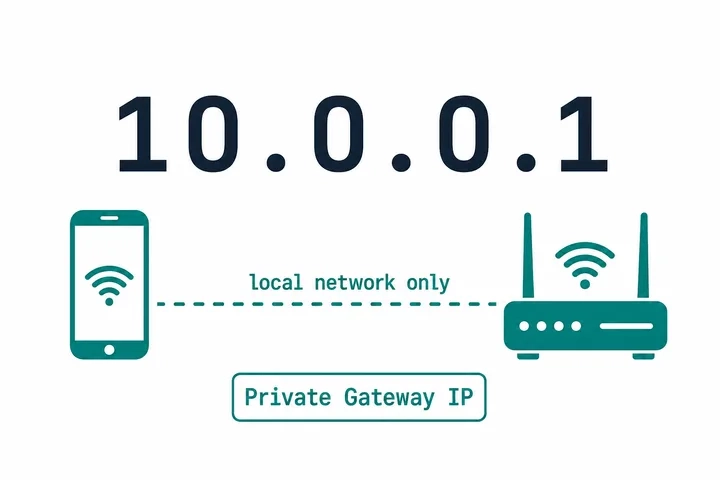
10.0.0.1 Piso WiFi refers to a Piso WiFi setup that uses the private IP address 10.0.0.1 somewhere within its local network. A private IP is used for communication between devices on the same network. It is not a normal public website that you can access from anywhere on the internet.
When your device connects to a compatible Piso WiFi network, the network may redirect you to a local captive portal. Depending on the system, this portal can allow you to purchase or enter a voucher, start a session, view your remaining time, or pause an active session.
It is important to understand that 10.0.0.1, the Piso WiFi portal, and the administrator panel are not necessarily the same thing. A customer may only need the portal to use internet access, while the machine owner may have access to additional management settings.
How Piso WiFi Works
A typical session follows a simple process:
- Connect your phone, laptop, or other device to the Piso WiFi network.
- Open a web browser.
- The network may redirect you to its captive portal.
- Enter a voucher or select an available internet package.
- Your internet session starts.
- If the system supports Pause Time, you may be able to pause and resume the session.
- The connection ends when the available session time expires.
The exact process can differ between machines and software configurations, so you should not assume that every Piso WiFi system uses identical menus or settings.
10.0.0.1 Piso WiFi Login
If your Piso WiFi system uses 10.0.0.1 as its local gateway or portal address, you may need to access it through a browser while connected to the correct network.
How to Access the 10.0.0.1 Piso WiFi Login Page
Follow these basic steps:
- Connect your device to the relevant Piso WiFi network.
- Open Chrome, Edge, Firefox, Safari, or another browser.
- Enter the correct local address in the browser’s address bar.
- Wait for the local portal or login interface to appear.
- Follow the instructions displayed by the system.
Do not type the IP address into a search engine. It should be entered directly into the browser’s address bar.
If the system uses another gateway address, entering 10.0.0.1 may not work. In that situation, checking your device’s network gateway can help identify the correct local address.
10.0.0.1 Login vs Piso WiFi Portal
These terms can be confusing.
The customer portal is normally designed for people who want to use the internet service. It may contain voucher, session, time, pause, and connection options.
The admin panel is intended for the operator or owner. It may provide configuration and management controls that ordinary customers do not need.
Because different Piso WiFi systems can be configured differently, the exact login screen and available options may vary.
Piso WiFi 10.0.0.1 Portal
The Piso WiFi portal is the page users interact with after connecting to the network. It is commonly called a captive portal because the network can redirect a newly connected device to a specific local webpage before normal internet access is provided.
A portal may include options for:
- Entering a voucher code
- Selecting an internet package
- Starting a session
- Checking remaining time
- Pausing an active session
- Resuming a paused session
- Viewing basic connection information
10.0.0.1 Piso WiFi Portal Pause
If your Piso WiFi system supports pausing, the option may be available directly inside the customer portal. After starting a session, look for a button or control related to Pause, Pause Time, or session management.
If you cannot see the option, it does not necessarily mean that your device is broken. The operator may have disabled the feature, the system may use a different interface, or your particular session may not support pausing.
10.0.0.1 Piso WiFi Pause Time
Pause Time is one of the most useful features available on supported Piso WiFi systems. It allows a user to temporarily stop an active internet session instead of allowing the available time to continue running while the connection is not being used.
For example, if you have remaining internet time but need to leave for a while, a supported system may allow you to pause your session and continue later.
The exact pause rules depend on the Piso WiFi system and its configuration.
What Is Piso WiFi Pause Time?
Pause Time separates the period when your internet session is actively being used from the period when the session is temporarily paused.
A typical system may work like this:
Start session → Use internet → Pause → Resume → Continue using remaining time
The available pause duration, number of pauses, and expiration rules are not necessarily identical across all Piso WiFi machines.
How to Pause Piso WiFi Time
If the feature is available:
- Connect to the Piso WiFi network.
- Open the customer portal.
- Check your active session.
- Find the Pause option.
- Select Pause.
- Confirm the action if the portal asks for confirmation.
- Check that the session status has changed.
Once the session is paused, follow the portal’s instructions when you are ready to continue.
How to Resume Paused Piso WiFi Time
When you want to continue:
- Reconnect to the relevant Wi-Fi network if necessary.
- Open the Piso WiFi portal.
- Locate your paused session.
- Select the Resume or Continue option.
- Confirm the action if required.
Your remaining time should continue according to the system’s configured rules.
How to Check Remaining Piso WiFi Time
Many systems display remaining time directly on the portal. Look for information such as:
- Remaining minutes
- Session status
- Start time
- Expiration time
- Pause status
If your system does not display this information, its interface may be configured differently.
How Long Does Piso WiFi Pause Time Last?
There is no single pause duration that applies to every Piso WiFi installation. The operator or software configuration may determine how long a session can remain paused and whether there are additional restrictions.
This is why it is better to check the actual portal rather than relying on a fixed time advertised for a different Piso WiFi system.
Can an Admin Turn Pause Time On or Off?
On systems that provide administrative controls for Pause Time, the operator may be able to enable, disable, or configure the feature.
The location of these settings depends on the particular software or hardware. If you are an ordinary customer, changing admin settings is not necessary and may interfere with the system.
Piso WiFi Pause Time Not Working?
If Pause Time does not work, try these checks:
- Confirm that you are using the correct Piso WiFi portal.
- Check whether your session is still active.
- Make sure the system supports Pause Time.
- Check whether you have already used the available pause.
- Refresh the portal.
- Reconnect to the network.
- Try another browser.
- Contact the Piso WiFi operator if the problem continues.
10.0.0.1 Piso WiFi Vendo
Piso WiFi Vendo generally refers to a coin-operated or self-service Wi-Fi setup where customers can purchase internet access and receive a timed session.
In a Vendo environment, the local network and portal work together to manage customer sessions. Depending on the configuration, users may interact with a portal for vouchers, packages, remaining time, and pause functions.
The administrator may have access to additional controls for managing the machine and network.
10.0.0.1 Piso WiFi Vendo Pause
If the Vendo system supports Pause Time, customers may see a pause option after starting their session.
The process is usually:
Start session → Open portal → Select Pause → Confirm → Resume later
However, not every Vendo system uses the same software or provides identical controls. If Pause is missing, check the system instructions or ask the operator.
10.0.0.1 Piso WiFi Vendo on Windows
Windows users can access a Piso WiFi network just like other Wi-Fi clients.
First, connect the computer to the correct wireless network. Then open a browser and access the portal address provided by the network.
If the page does not appear automatically, check the computer’s network connection and gateway information. A VPN, proxy, DNS issue, or incorrect network connection can sometimes interfere with captive portal access.
10.0.0.1 Piso WiFi Admin
The admin interface is different from the customer portal. It is designed for the person who manages the Piso WiFi system.
Depending on the installation, an administrator may be able to manage:
- Internet packages
- User sessions
- Voucher codes
- Time settings
- Pause settings
- Network configuration
- Machine settings
- Other system controls
How to Access the Piso WiFi Admin Panel
Admin access normally requires:
- Connecting to the appropriate local network.
- Opening the administrator interface.
- Entering the correct administrator credentials.
- Accessing the available management settings.
Do not assume that a generic username or password will work on every Piso WiFi installation. Credentials can be changed by the operator, and different systems may use different defaults.
What Can You Manage From the Admin Panel?
The available controls depend on the software, but an administrator may have options for configuring session duration, managing vouchers, controlling access, and changing network-related settings.
Before changing anything, it is a good idea to record the existing configuration. Incorrect changes can affect customer connectivity.
How to Generate a Piso WiFi Voucher Code
Voucher generation is normally an administrator-side function. The exact process depends on the software controlling the Piso WiFi machine.
If your system provides a voucher-management section, use that interface to create or manage codes according to its available settings.
How to Turn Piso WiFi Pause Time On or Off
Some Piso WiFi systems provide administrative controls for Pause Time. If your system includes this option, it may be found within the session or time-management settings.
The menu names can differ, so follow the documentation for your particular setup instead of applying settings from a different machine.
10.0.0.1 Piso WiFi Voucher Code
A Piso WiFi voucher code is typically used to activate an internet session or package.
Depending on the system, the customer may enter the code on the portal after connecting to the network.
How to Use a Piso WiFi Voucher
- Connect to the Piso WiFi network.
- Open the customer portal.
- Find the voucher or code field.
- Enter the code carefully.
- Submit it.
- Check whether your session has started.
Why Is My Voucher Code Not Working?
Possible causes include:
- The code was entered incorrectly.
- The voucher has already been used.
- The voucher has expired.
- The voucher belongs to another system.
- The network portal is experiencing a problem.
- The session has a restriction.
If you purchased the voucher, keep it private and contact the operator if it does not work.
What About Free Piso WiFi Voucher Codes?
Searches for free Piso WiFi voucher codes are common, but there is no universal free code that works across every machine.
Voucher codes are normally generated for a particular system or operator. Be careful with websites or downloads that claim to provide guaranteed working codes, especially when they request personal information or suspicious software.
10.0.0.1 Piso WiFi Time & Session Management
Your Piso WiFi session normally has a defined amount of internet time. The portal may show how much time has been used or how much remains.
How to Check Remaining Time
Open the customer portal while connected to the relevant network and look for the session timer or remaining-time information.
Active Time vs Pause Time
Active time refers to the period when your session is running.
Pause Time temporarily stops the session on systems that support the feature.
These two functions should not be treated as identical because the exact rules depend on the system configuration.
What Happens When Your Time Expires?
Once the available session time expires, internet access may stop or the portal may ask you to purchase another session or enter another voucher.
Why Is My Remaining Time Different?
The displayed time can depend on:
- Voucher duration
- Package selected
- Pause rules
- Session configuration
- System settings
- Operator policies
LPB Piso WiFi 10.0.0.1
LPB Piso WiFi is one of the system-specific terms users search for when looking for 10.0.0.1 access, login, Pause Time, or admin information.
If you are using an LPB system, the available portal and controls depend on the particular configuration.
LPB Piso WiFi Login
Connect to the relevant LPB network and use the local address provided by the system. If 10.0.0.1 is configured as the gateway, it may open the relevant local interface.
LPB Piso WiFi Pause Time
If Pause Time is enabled, it may be available from the customer portal. Look for the pause or session-management option after activating your connection.
LPB Piso WiFi Admin
LPB administrators may have access to additional configuration controls. These can include session, voucher, time, and other system settings.
LPB Piso WiFi Login Problems
If the LPB portal does not load:
- Check that you are connected to the correct network.
- Verify the local gateway.
- Try another browser.
- Disable a VPN or proxy temporarily.
- Reconnect to Wi-Fi.
- Ask the operator if the machine is experiencing an outage.
Some searches also use terms such as LBP or LBS. These can be spelling variations, but they should not automatically be treated as identical systems without confirming the specific product.
How to Find the Correct 10.0.0.1 Address
Not every network uses 10.0.0.1. If the address does not work, your device’s default gateway can tell you which local address the network is actually using.
Find the Gateway on Windows
On Windows, you can use the network settings or Command Prompt to view your network configuration and identify the default gateway.
The gateway shown for your current Wi-Fi connection is generally more useful than guessing an IP address.
Find the Gateway on Android
Android devices can expose network details through Wi-Fi settings, although the exact menu names vary between manufacturers and Android versions.
Look for network information associated with the Wi-Fi connection.
Find the Gateway on iPhone
On an iPhone, open the Wi-Fi settings and select the connected network to view its network details. The router field can show the local gateway used by the connection.
Why Your Gateway May Be Different
Network administrators can configure different private IP ranges. Therefore, if your Piso WiFi system does not use 10.0.0.1, another local gateway may be correct for that installation.
10.0.0.0.1 vs 10.0.0.1
One of the most common mistakes is entering 10.0.0.0.1 instead of 10.0.0.1.
IPv4 addresses contain four numerical sections separated by dots. 10.0.0.1 follows that standard format, while 10.0.0.0.1 contains five sections and is not a standard IPv4 address.
Why Do Users Type 10.0.0.0.1?
People may add an extra .0 because they are unsure of the correct address or have seen the term written incorrectly elsewhere.
If your Piso WiFi system uses 10.0.0.1, use the correct address rather than adding another number.
What Address Should You Actually Use?
Use the gateway or portal address supplied by the actual Piso WiFi system. If 10.0.0.1 is the configured gateway, enter that address directly in your browser.
Common 10.0.0.1 Piso WiFi Typos & Mistakes
Small typing errors can prevent a local page from opening.
Common examples include:
- .10.0.0.1
- 10.0.0.1.
- 10.0.0.0.1
- 10.0.0.1.piso wifi
- piso wifi.10.0.0.1
- http //10.0.0.1/
A browser address should contain the actual local address rather than a combination of the IP and search keywords.
Common LPB Name Variations
Users may also search for:
- LPB Piso WiFi
- LBP Piso WiFi
- LBS Piso WiFi
A spelling variation does not necessarily mean there are different systems. Check the machine’s branding or documentation before assuming that two names refer to different products.
10.0.0.1 Piso WiFi Not Working? Troubleshooting Guide
If the address, portal, voucher, or Pause Time is not working, start with the basics.
10.0.0.1 Page Won’t Open
Check that you are connected to the correct local network. A private IP address generally cannot be accessed through an unrelated Wi-Fi connection.
Connected to Wi-Fi but No Portal
Try opening a browser manually. Some devices do not automatically trigger the captive portal.
You can also disconnect and reconnect to the Wi-Fi network.
Login Credentials Are Not Accepted
Verify that you are using the correct credentials for the relevant interface. Customer portal information and administrator credentials are not necessarily interchangeable.
Pause Button Is Not Working
Check whether:
- Your session is still active.
- Pause is supported.
- You have reached a pause limit.
- The operator has disabled the feature.
- The portal has loaded correctly.
Voucher Code Is Not Working
Check the spelling of the code and confirm that it belongs to the current Piso WiFi system.
Internet Session Will Not Start
Reconnect to Wi-Fi and reopen the portal. If other customers are experiencing the same issue, the problem may be with the Piso WiFi machine or network rather than your device.
Browser Redirect Problems
Try another browser, clear cached data, and temporarily disable VPN or proxy software.
When to Contact the Piso WiFi Operator
If basic troubleshooting does not help, the machine owner or operator is usually the best person to contact. They can check system status, vouchers, network configuration, and administrator settings.
How to Reset a Piso WiFi Machine
A factory reset should mainly be considered by the machine owner or authorized administrator.
When Should You Consider a Reset?
A reset may be useful when a system has a serious configuration problem and normal troubleshooting or documented recovery methods do not work.
Before Resetting the Machine
Make sure you:
- Record important configuration settings.
- Confirm that you have administrator access.
- Read the system’s documentation.
- Understand which settings may be erased.
- Have the information required to configure the system again.
Factory Reset Considerations
There is no universal reset procedure for every Piso WiFi machine. The button combination, reset duration, and recovery process can vary by hardware and software.
Do not follow a reset procedure intended for a different model unless you have confirmed that it applies to your system.
10.0.0.1 Piso WiFi Security Tips
If you operate a Piso WiFi system, security should be part of regular maintenance.
- Change default administrator credentials when the system allows it.
- Use a strong password.
- Do not share administrator credentials with customers.
- Avoid exposing management interfaces unnecessarily.
- Keep the system maintained.
- Back up important configuration information.
- Make changes only when you understand their effect.
Customers should also avoid entering administrator credentials into unknown pages. Only use the portal or login interface provided by the actual network.
Tips for Piso WiFi Users
A few simple habits can prevent many common problems:
- Connect to the correct Piso WiFi network.
- Wait for the portal to load.
- Check your remaining time before leaving the session.
- Use Pause Time when it is available and appropriate.
- Keep voucher codes private.
- Don’t repeatedly guess administrator credentials.
- Don’t install unknown software claiming to fix the Piso WiFi connection.
- Contact the operator if the machine itself appears to be offline.
Frequently Asked Questions About 10.0.0.1 Piso WiFi
What is 10.0.0.1 Piso WiFi?
It refers to a Piso WiFi setup where 10.0.0.1 is used as a local network address. The exact portal and functions depend on the system configuration.
How do I log in to 10.0.0.1 Piso WiFi?
Connect to the relevant Piso WiFi network and enter the configured local address in your browser. If 10.0.0.1 does not work, check the network’s actual gateway.
How do I access the Piso WiFi portal?
Connect to the Piso WiFi network and open a browser. Many systems automatically redirect connected users to a captive portal.
How does Piso WiFi Pause Time work?
On supported systems, Pause Time temporarily stops an active internet session so the user can resume it later. The duration and rules depend on the system configuration.
How can I check my remaining Piso WiFi time?
If the system provides a session timer, the remaining time is normally displayed on the customer portal.
Why isn’t 10.0.0.1 opening?
You may be connected to the wrong network, using an incorrect IP, experiencing a browser issue, or dealing with a network/system configuration problem.
Why doesn’t 10.0.0.0.1 work?
10.0.0.0.1 contains five numerical sections and is not a standard IPv4 address. If your system uses 10.0.0.1, use that address instead.
What is the difference between the Piso WiFi portal and admin panel?
The portal is generally intended for customers using the internet service. The admin panel is intended for the operator and can contain system configuration controls.
How does a Piso WiFi voucher code work?
A voucher code is generally used to activate a particular internet package or session. The exact process depends on the system and operator.
Can an admin disable Pause Time?
Some Piso WiFi systems provide administrative controls for Pause Time. Whether it can be disabled depends on the software and configuration.
What should I do if I forget the admin password?
Use the supported recovery method for the specific system. Avoid repeatedly guessing credentials, and consider a factory reset only when the documented recovery options are unavailable.
Is LPB the same as LBP or LBS Piso WiFi?
These names can appear as spelling variations in searches, but they should not automatically be assumed to represent the same system. Check the machine’s actual branding and documentation.
Can I access 10.0.0.1 Piso WiFi from Windows?
Yes, if your Windows computer is connected to the relevant network and the system uses 10.0.0.1 as its local address.
Why isn’t the Pause button appearing?
The feature may not be enabled, your session may not support it, the session may have expired, or the system may use different controls.
Final Thoughts
10.0.0.1 Piso WiFi brings together several different functions, including local network access, customer portals, internet sessions, Pause Time, vouchers, Vendo systems, and administrator controls. The most important thing is to understand which interface you actually need.
For customers, the portal is usually the main point of interaction. For operators, the admin interface provides additional configuration and management options. If 10.0.0.1 does not open, don’t assume the entire Piso WiFi system is broken. First check your network connection and identify the correct gateway.
Pause Time, voucher behavior, session duration, and admin options can vary between systems. Following the configuration of the actual Piso WiFi machine will always be more reliable than assuming every installation works exactly the same way.