10.0.0.1 Piso WiFi Login & Admin guide with access steps, password tips, portal help, troubleshooting, and security advice for users.
10.0.0.1 Piso WiFi Login & Admin
If you are trying to access a Piso WiFi system, 10.0.0.1 may be the local address used to open its login or management interface. The address works only within the relevant local network, so you normally need to connect to the Piso WiFi network before trying to access it.
This guide explains how to access 10.0.0.1 Piso WiFi, the difference between the customer portal and admin panel, common login problems, and basic administrator settings.
What Is 10.0.0.1 Piso WiFi Login?
10.0.0.1 is a private IPv4 address that can be used as a local gateway or management address. In a Piso WiFi setup, it may provide access to a local portal or administrative interface.
The exact page depends on the machine and software configuration. Not every Piso WiFi system uses the same IP address, login screen, username, or password.
For this reason, you should use the address configured for your particular Piso WiFi system rather than assuming that every machine works identically.
How to Access 10.0.0.1 Piso WiFi Login
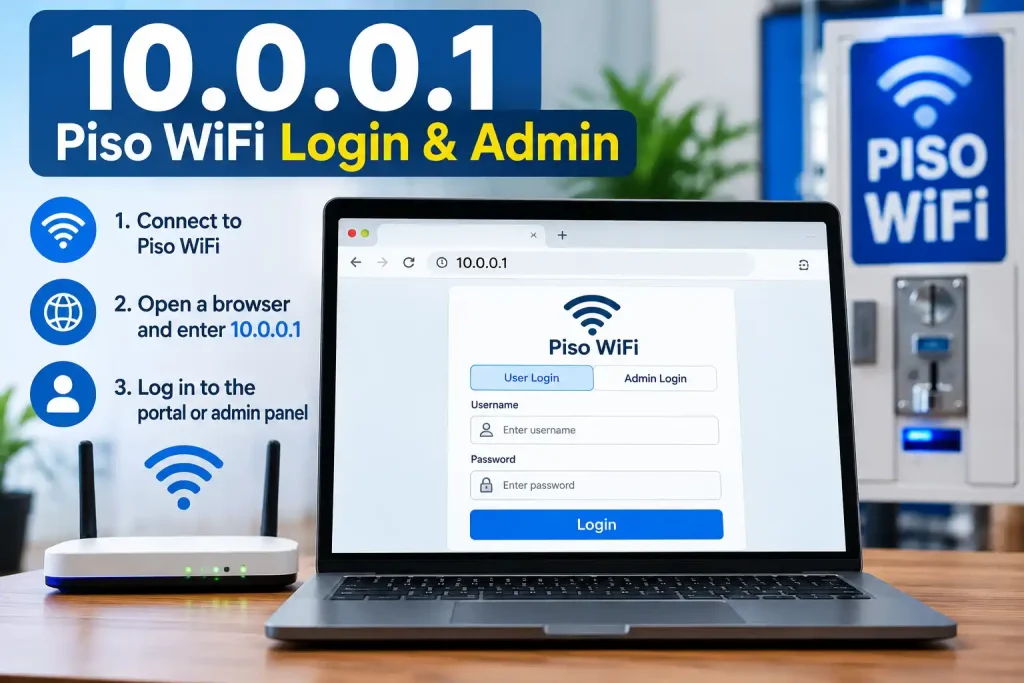
Follow these basic steps:
- Connect your phone, laptop, or computer to the correct Piso WiFi network.
- Open a web browser such as Chrome, Edge, Firefox, or Safari.
- Type 10.0.0.1 directly into the browser’s address bar.
- Press Enter.
- Wait for the local login or portal page to load.
- Enter the required credentials if an administrator login is displayed.
Do not search for the address on Google. A local IP should be entered directly into the browser address bar.
If the page does not open, your network may use a different gateway address.
10.0.0.1 Login vs Piso WiFi Portal
These two interfaces serve different purposes.
The Piso WiFi portal is normally designed for customers. It may allow users to enter a voucher, start an internet session, check remaining time, or pause a supported session.
The admin panel is intended for the operator or owner. It can provide additional controls for managing vouchers, sessions, network settings, and other system options.
You should not use administrator credentials on a customer portal or share admin login information with ordinary users.
How to Access the Piso WiFi Admin Panel
If you own or manage the system, connect to the appropriate local network and open the configured administrator address.
After the login page appears:
- Enter your administrator username.
- Enter the correct password.
- Select the login option.
- Open the dashboard after authentication.
The available settings depend on the Piso WiFi software and hardware. Some systems may provide more controls than others.
What Can You Manage From the Admin Panel?
Depending on the system, an administrator may be able to manage:
- Internet packages
- User sessions
- Voucher codes
- Session duration
- Pause Time settings
- Network configuration
- Access controls
- Basic machine settings
Before changing an important setting, record the existing configuration so you can restore it if something goes wrong.
10.0.0.1 Piso WiFi Username and Password
There is no single username and password combination that works for every Piso WiFi installation.
The administrator may have changed the original credentials, or the system may use its own authentication method. If you are the owner and have forgotten the password, use the documented recovery procedure for your particular system.
Avoid repeatedly guessing passwords, especially on a system you do not own.
10.0.0.1 Piso WiFi Login Not Working
If 10.0.0.1 does not open, try these solutions:
Check Your Wi-Fi Connection
Make sure your device is connected to the correct Piso WiFi network. A private IP address is generally accessible only from the relevant local network.
Confirm the Gateway
Your network may use a different local IP. Check the connection details on your device to identify the current gateway.
Try Another Browser
Browser problems can sometimes interfere with local pages or captive portals. Try another browser and reload the page.
Disable VPN or Proxy
A VPN or proxy can interfere with local network access. Temporarily disable it and try again.
Reconnect to Wi-Fi
Disconnect from the network, reconnect, and open the browser again.
Don’t Confuse 10.0.0.1 With 10.0.0.0.1
A common mistake is entering 10.0.0.0.1. That address contains five sections and is not a standard IPv4 address. If your system uses 10.0.0.1, enter it exactly as 10.0.0.1.
10.0.0.1 Piso WiFi Admin Security
If you manage a Piso WiFi machine, protect the administrator interface carefully.
- Change default credentials when possible.
- Use a strong administrator password.
- Don’t share admin credentials with customers.
- Avoid exposing the management interface unnecessarily.
- Keep configuration information backed up.
- Don’t change settings unless you understand their purpose.
Customers should only use the portal provided by the Piso WiFi system and should never enter administrator credentials into an unfamiliar page.
Frequently Asked Questions
What is 10.0.0.1 Piso WiFi?
It refers to a Piso WiFi setup that uses 10.0.0.1 as a local network or management address.
How do I log in to 10.0.0.1 Piso WiFi?
Connect to the relevant Piso WiFi network and enter 10.0.0.1 directly into your browser. The system must actually use this address for the page to open.
Is the Piso WiFi portal the same as the admin panel?
No. The portal is generally for customers, while the admin panel is designed for operators and system owners.
What if 10.0.0.1 does not open?
Check your Wi-Fi connection, confirm the gateway address, try another browser, disable VPN/proxy software, and reconnect to the network.
What is the default 10.0.0.1 password?
There is no universal password for every Piso WiFi system. Credentials depend on the particular hardware, software, and configuration.
Final Thoughts
The 10.0.0.1 Piso WiFi Login & Admin interface provides local access to a compatible Piso WiFi system. Customers generally use the portal for sessions and vouchers, while administrators use the management interface to control system settings.
If 10.0.0.1 does not work, don’t immediately assume the machine is faulty. First confirm that you are connected to the correct network and that 10.0.0.1 is actually the configured gateway. For administrators, protecting the login credentials is equally important because configuration changes can affect the entire Piso WiFi service.