Piso WiFi Portal & Vendo guide with 10.0.0.1 access, voucher codes, pause time, login steps, and common portal issues and user tips.
Piso WiFi Portal & Vendo
The 10.0.0.1 Piso WiFi portal is commonly used as the local access page for these functions.
For Piso WiFi operators, the vendo system also helps manage internet access, session time, vouchers, and connected users.
What Is the Piso WiFi Portal?
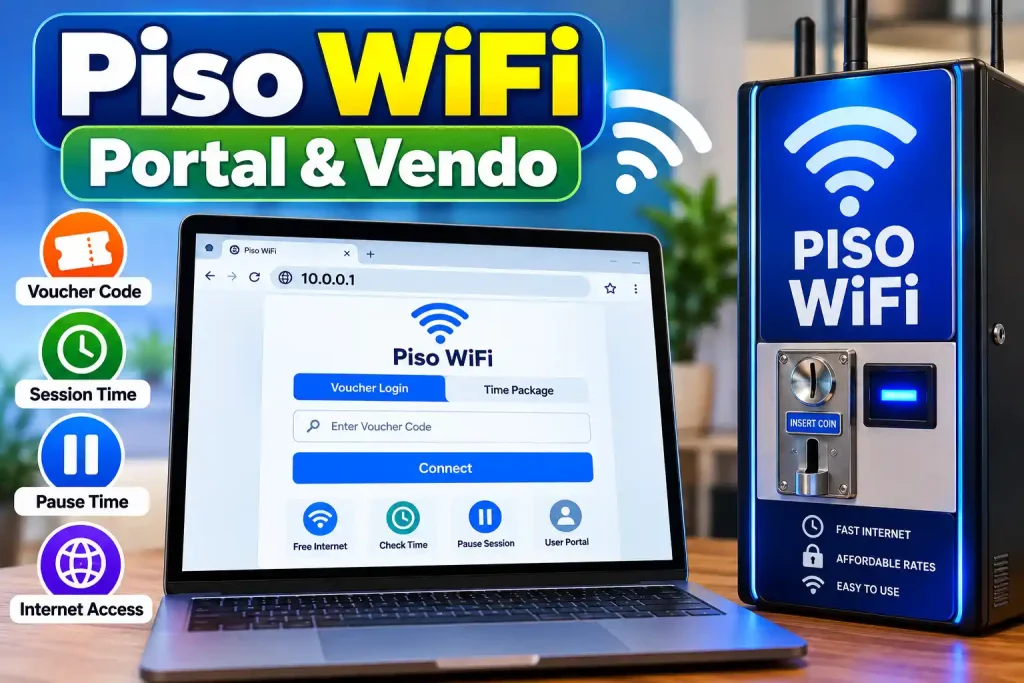
The Piso WiFi portal is the page that appears when a user connects to a Piso WiFi network. Depending on the system configuration, it may show a login form, voucher field, available time packages, balance, or connection status.
The portal normally works only when your device is connected to the correct Piso WiFi network. It is different from the admin panel because the portal is mainly designed for customers.
How to Access the 10.0.0.1 Piso WiFi Portal
Follow these basic steps:
- Connect your phone, laptop, or other device to the Piso WiFi network.
- Open Chrome, Safari, or another browser.
- Enter 10.0.0.1 in the address bar.
- Press Enter or Go.
- Wait for the Piso WiFi portal or login page to load.
If the page does not open, make sure you are connected to the correct WiFi network and that mobile data is temporarily turned off.
What Is Piso WiFi Vendo?
A Piso WiFi vendo machine is a self-service system that provides internet access after payment or voucher activation. Users can select a package, insert payment when supported, and receive internet time.
The exact features depend on the vendo software and network setup. Some systems also support voucher codes and session controls.
Piso WiFi Vendo Pause
Some Piso WiFi systems allow users to pause their remaining internet time. When the session is paused, the remaining time can be preserved until the user resumes the connection.
If your system supports this feature, the pause option is usually available through the Piso WiFi portal. Not every Piso WiFi setup has the same pause controls.
How to Use a Piso WiFi Voucher Code
If your Piso WiFi system uses vouchers:
- Connect to the Piso WiFi network.
- Open the portal.
- Enter the voucher code in the provided field.
- Submit the code.
- If the code is valid, your internet session should start.
A voucher may fail if it has expired, has already been used, or belongs to a different Piso WiFi system.
Piso WiFi Portal Not Opening
If 10.0.0.1 Piso WiFi does not open, try these solutions:
- Reconnect to the Piso WiFi network.
- Turn off mobile data temporarily.
- Check that you entered 10.0.0.1 correctly.
- Open a different browser.
- Forget the WiFi network and reconnect.
- Restart WiFi on your device.
- Try opening another local page if provided by the operator.
Do not confuse 10.0.0.1 with similar addresses such as 10.0.0.0.1.
Portal vs Admin Panel
The Piso WiFi portal is generally used by customers to activate or manage their internet session. The admin panel is intended for the operator and may provide access to system settings, users, vouchers, and network controls.
Your available options depend on the Piso WiFi hardware and software configuration.
Frequently Asked Questions
What is 10.0.0.1 Piso WiFi used for?
It can be used as a local address for accessing a Piso WiFi portal or management interface.
Why is the Piso WiFi portal not opening?
Check your WiFi connection, browser, IP address, and network configuration. You must normally be connected to the correct Piso WiFi network.
Can I pause Piso WiFi time?
Yes, if the particular Piso WiFi system supports a pause feature.
What is a Piso WiFi vendo?
It is a self-service internet vending system that allows users to purchase or activate internet access.
Can I use any voucher code?
No. A voucher normally needs to be valid for the specific Piso WiFi system that issued it.
Conclusion
The Piso WiFi Portal & Vendo system makes it easier for users to activate internet access, use vouchers, check sessions, and, where supported, pause remaining time. The 10.0.0.1 address may provide access to the local portal or management page. If the portal does not load, checking your network connection and IP address is usually the best place to start.